
About the Hansard search
The Hansard search provides access to all Ontario House debates (Hansard transcripts) starting from 29th Parliament, 4th Session (March 5, 1974, to February 13, 1975) to one week ago.
For assistance, contact Hansard at 416-325-7400 or hansard@ola.org.
Select House or Committees before entering your search terms.
Note: Terms in the Speaker and Keyword search fields will remain in place if you toggle to a different search option after you have entered them (e.g., “Smith” in Speaker and “education” in Keyword in House will remain entered in those fields after switching to Committee).
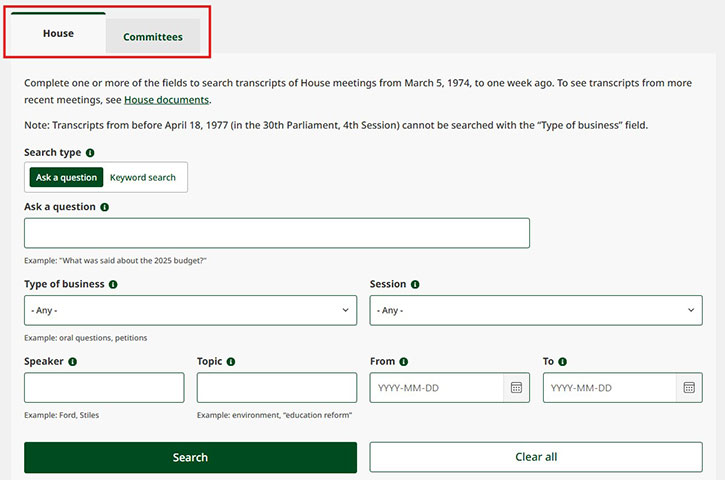
The Hansard search is structured to allow fast and easy access to Hansard transcripts.
House
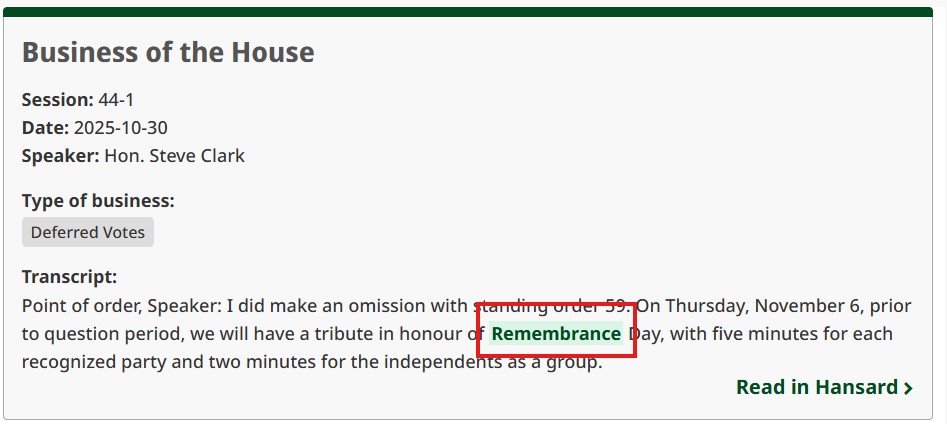
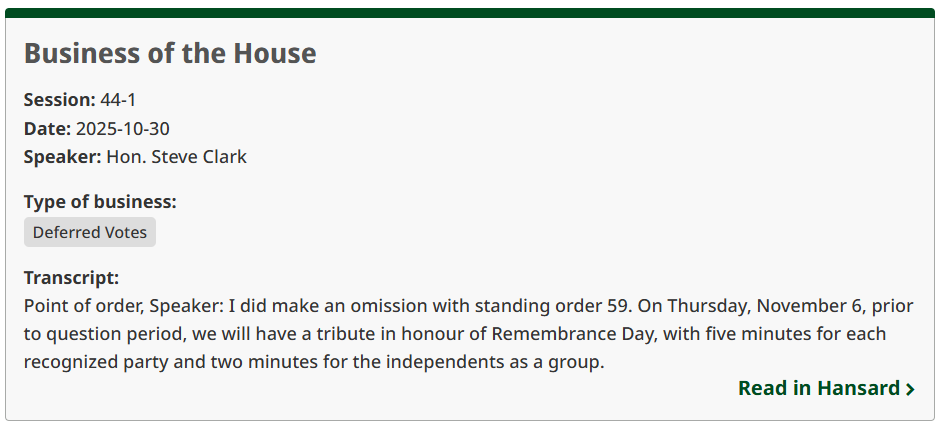
Results for each day’s House Hansard transcript contain the following parts:
Title
The header of the search result (e.g., “Business of the House”).
Session
The Parliament (e.g., 44) and the session (e.g., 1).
Date
The date on which the result occurred.
Speaker
The member speaking at that time.
Type of business
Part of the day’s proceedings as outlined in the standing orders.
Transcript
The transcribed text of what the speaker said.
Read in Hansard
This allows you to view the entire Hansard transcript that includes the text in the search result.
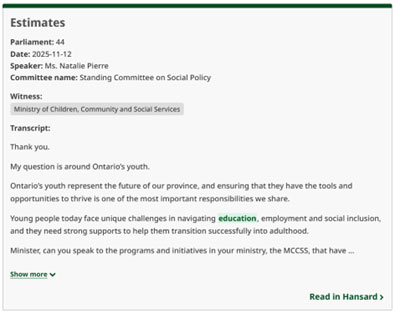
Committees
Results for each committee transcript contain the following parts:
Title
The header of the search result (e.g., “Committee business”).
Parliament
Please note that the search tool only has transcripts from Parliament 42 to present.
Date
The date on which the result occurred.
Speaker
The member, witness or witness group, or Office of the Assembly staff speaking at the time.
Committee name
The name of the committee.
Transcript
The transcribed text of what the speaker said.
Read in Hansard
This allows you to view the entire Hansard transcript that includes the text in the search result.
The Hansard search offers two types of searches: Keyword search and Ask a question. For the Keyword search, you can search Hansard transcripts using any of the available fields. Place your cursor on the icon above the field to get more information about the field. For Ask a question, you must enter text in the Ask a question field at minimum for any search results to display.
The screenshots below show search fields for each option. Most of the search fields are the same for either option.
House
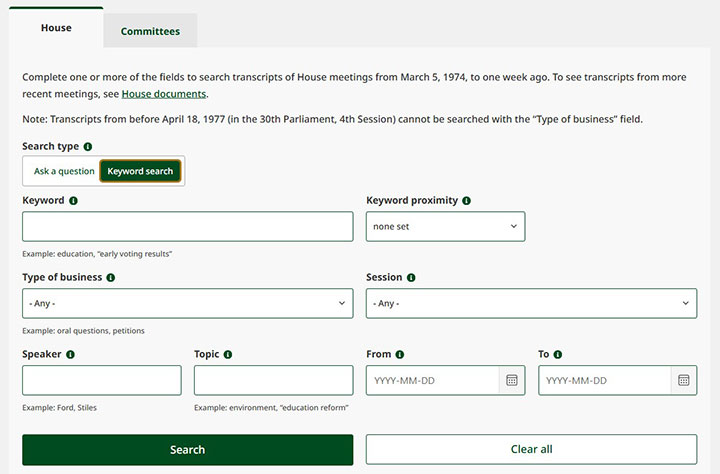
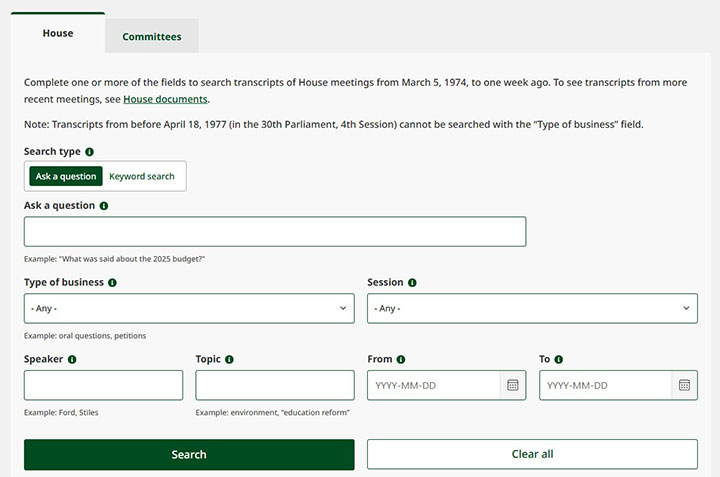
Committees
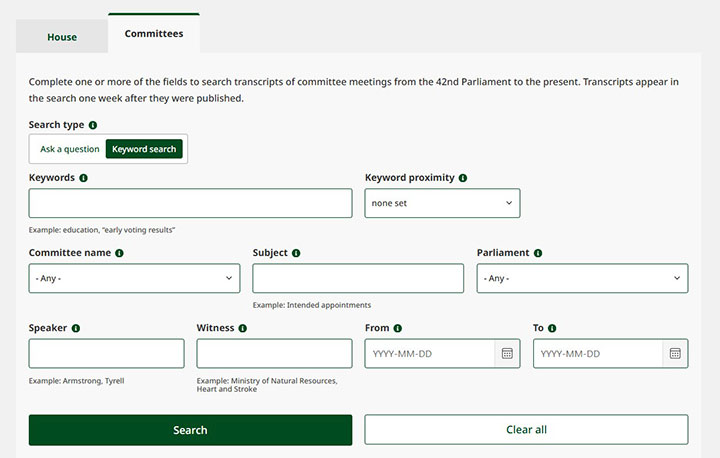
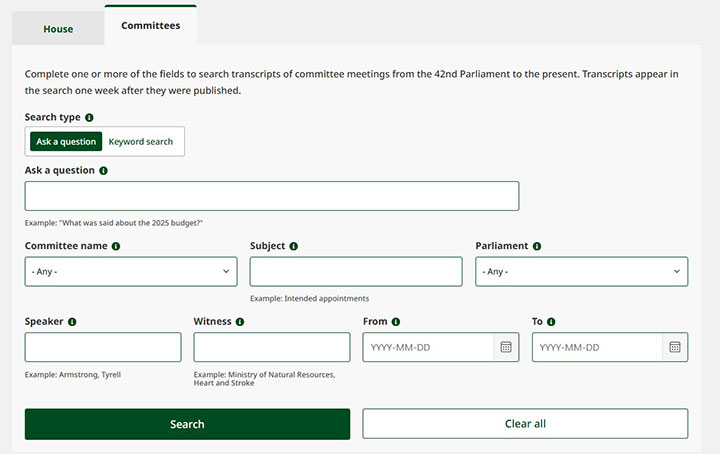
Tips about specific fields
House
Type of business
This is a drop-down list of parts of the day’s proceedings. You can select one type of business to search, or, to filter using the “Type of business” facet for your search results, you can select the “All types of business” option from the drop-down menu, or you can leave this field blank. Use the Type of business facet to select multiple types of business. See the “Refining your search results” section of this guide below for more information on facets.
Session
There are three ways you can use the Session field to limit your search:
- Select individual sessions to limit your search to one session.
- Select all sessions to search across all sessions.
- Leave the field blank and use the Session facet to select multiple sessions to refine your results to specific sessions. See the “Refining your search results” section of this guide below for more information on facets.
Speaker
There are many iterations of a member’s name used in Hansard transcripts. To browse for a specific member by name or Parliament, view All MPPs.
- For some Parliaments, the member’s first name and their riding are included only the first time a member speaks (e.g., Mr. John Smith (Algoma)). Afterwards, only the honorific or title and surname are used (e.g., Mr. Smith).
- For some Parliaments, a cabinet minister’s first name and ministry are included only the first time they speak (Hon. John Smith (Minister of Housing)). Their riding is not included. Afterwards, only the title and surname are used (e.g., Hon. Smith).
- If the member speaks in French, their honorific and title will be recorded in French (e.g., M. Smith).
- Where two members have the same surname, they are referred to by their honorific or title, first name, and surname (e.g., Ms. Jane Doe and Mrs. Alice Doe).
- Unique terms are used to identify House proceedings and other events. These include:
- Anthem: identifies when the anthem is sung
- Interjection: includes any disruption to proceedings such as interruptions, applause, and laughter
- Note: identifies events not related to the House proceedings, such as a failure of the sound system or errata
- Prayers: identifies when prayers are held in the Chamber
- Procedure: includes non-spoken events in the House such as resuming or adjourning debates, bells ordered to be rung, and members escorted from the Chamber
- Vote-Aye and Vote-Nay: indicates voting procedures
Date range
Use the “From” and “To” fields to search for a specific date or date range. You can limit the date range in the following ways:
- Enter a date in the “From” field and leave “To” empty to search a single date.
- Enter a date in the “To” field and leave “From” empty to search from the start of the database (June 27, 1977) to the specified date.
- Enter a date in the “From” and “To” field to search a specific date range.
Example:
- To search for debates for an entire month (e.g., May 1992), simply search from May 1992 to June 1992 (leave the day fields empty).
- To search for debates from an entire year (e.g., 1992), simply search from 1992 to 1993 (leave the day and month fields empty).
- To search for debates from a specific date to the present (e.g., from May 9, 1992, to today), search from 1992-09-05 to the current date.
Keyword proximity
This field appears only in the keyword search and determines how close keywords are to each other within a transcript. By default, the keyword proximity is none set. You can also select standard (to keep the keywords within 10-25 words of each other) or you can choose a custom distance. If you choose custom, the Enter number field will appear. Use this field to set a custom limit for the maximum words apart between the keywords.
Proximity logic only works with simple keyword searches. Complex queries using operators like OR, NOT, parentheses ( ), wildcards *, or quoted phrases with operators will automatically skip proximity processing and use standard search instead.
Note
Some Speaker names and Topics may include diacritics, or accents (e.g., MPP Grandmaître or Better Municipal Governance Act, 2022 / Loi de 2022 visant à améliorer la gouvernance municipal).
Search results will be different if an accent is used in your search term or not.
If you are searching for a French term starting with a vowel, you may need to include either the article plus apostrophe (l') or a truncation operator (*) at the beginning of the term.
Committee
Committee name
This is a drop-down list of committee names. You can select one committee name to search that specific committee’s transcripts, or, to filter using the Committee name facet for your search results, you can leave this field blank. Use the Committee name facet to select multiple types of business. See the “Refining your search results” section of this guide below for more information on facets.
Subject
This is a free text search field of the headings of a committee transcript. Common subject headings include bill names, report names, and procedural subjects such as “Committee business.” You can also leave this field blank and use the Subject facet to select multiple subjects. See the “Refining your search results” section of this guide below for more information on facets.
Parliament
There are three ways you can use the Parliament field to limit your search:
- Select an individual Parliament to limit your search to one Parliament.
- Select all Parliaments to search across all available Parliaments.
- Leave the field blank and use the Parliament facet to select multiple Parliaments to refine your results to specific parliaments. See the “Refining your search results” section of this guide below for more information on facets.
Speaker
This is a free text search field to search speakers who appear in committee. Speakers include members, witnesses, and Office of the Assembly staff, such as research officers or committee clerks.
There are many iterations of a member’s name used in Hansard transcripts. To browse for a specific member by name or Parliament, view All MPPs.
- If a member is the Chair or Vice-Chair of a committee, they are referred to as The Chair or The Vice Chair and then their name (e.g., The Chair (Mr. Brian Riddell)).
- Members are referred to by their honorific or title, first name, and surname (e.g. Hon. Caroline Mulroney, MPP Jamie West, Mr. Matthew Rae).
- If the member speaks in French, their honorific and title will be recorded in French (e.g., M. Smith).
- Where two members have the same surname, they are referred to by their honorific or title, first name, and surname (e.g., Ms. Jane Doe and Mrs. Alice Doe).
- Unique terms are used to identify committee proceedings and other events. These include:
- Interjection: includes any disruption to proceedings such as interruptions, applause, and laughter
- Note: identifies events not related to the committee proceedings, such as a failure of the sound system or errata
- Procedure: includes non-spoken events in the House such as
- Vote-Aye and Vote-Nay: indicates voting procedures
Witness
This is a free text search field of the witnesses or witness groups heading of a committee transcript identifying the witnesses or witness groups that appear before a committee. Witnesses can appear as part of a group or as an individual.
Date range
Use the “From” and “To” fields to search for a specific date or date range. You can limit the date range in the following ways:
- Enter a date in the “From” field and leave “To” empty to search a single date.
- Enter a date in the “To” field and leave “From” empty to search from the start of the database (June 27, 1977) to the specified date.
- Enter a date in the “From” and “To” field to search a specific date range.
Example:
- To search for debates for an entire month (e.g., May 2019), simply search from May 2019 to June 2019 (leave the day fields empty).
- To search for debates from an entire year (e.g., 2019), simply search from 2019 to 2020 (leave the day and month fields empty).
- To search for debates from a specific date to the present (e.g., from May 9, 2019, to today), search from 2019-05-09 to the current date.
Keyword proximity
This field appears only in the keyword search and determines how close keywords are to each other within a transcript. By default, the keyword proximity is none set. You can also select standard (to keep the keywords within 10-25 words of each other) or you can choose a custom distance. If you choose custom, the Enter number field will appear. Use this field to set a custom limit for the maximum words apart between the keywords.
Proximity logic only works with simple keyword searches. Complex queries using operators like OR, NOT, parentheses ( ), wildcards *, or quoted phrases with operators will automatically skip proximity processing and use standard search instead.
Note
Some Speaker names, Subjects, and Witnesses may include diacritics, or accents (e.g., MPP Grandmaître or Better Municipal Governance Act, 2022 / Loi de 2022 visant à améliorer la gouvernance municipal).
Search results will be different if an accent is used in your search term or not.
If you are searching for a French term starting with a vowel, you may need to include either the article plus apostrophe (l') or a truncation operator (*) at the beginning of the term.
Boolean searching is available in the Keyword, Speaker, and Topic fields for House and in the Keyword, Speaker, Subject, and Witness fields for committee.
Keywords can be formatted and combined into searches using specific words and symbols. Boolean operators connect your search words together to either narrow or broaden results. The following operators are available:
AND
Search field must include both terms.
Example: acid AND rain will find debates that contain both words anywhere in the text.
AND NOT
Search field does not contain the term or phrase in.
Example: acid AND NOT rain will find debates that contain the word "acid" but not the word "rain."
OR
Debates contain either one term or the other or both.
Example: “acid rain” OR acidulated finds debates with either one or both terms. Results are presented in order of how often each of the terms appear.
Search for a word, several words, or a phrase in the Keyword, Speaker, and Topic fields for House and in the Keyword, Speaker, Subject, and Witness fields for committee. To search for a phrase, use quotation marks to define the phrase.
Example: “early voting results”, “intended appointments”
Without using quotation marks, Hansard search will search for the keywords separately.
Use the truncation (*) operator to search for variations of a word.
Example: train* will find debates containing train, trains, training, etc.
There are two options to display search results: full or summary.
Full (default for filter-only searches)
Choose this option to display complete content with search highlighting applied when available.
Key features:
- Full text of parliamentary proceedings
- Natural reading experience
- All speaker information and context
- Search highlighting from the Search Index (when search terms are present)
Best for: Reading complete discussions and detailed analysis
When using filters without a search query, the full display option is automatically selected because there are no search terms to highlight or summarize against.
Summary
Choose this option to display a summary of results that are relevant to your search.
Key features:
- Extensive highlighting shows matching concepts
- Contextual snippets explain relevance
- Helps evaluate result quality quickly
Best for: Understanding search relevance and exploring results
Keyword search
By default, search results are ordered by date with the most recent debates first. Subsequently, they are ordered by how closely each intervention matches your search terms. The most recent debates with the greatest number of search terms will appear first in the search results.
For House, change the order of results by choosing Date, Speaker, or Topic from the top of the results page. Speaker and Topic sort alphabetically.
For Committee, change the order of results by choosing Date or Speaker from the top of the results page. Speaker sorts alphabetically.
Ask a question
By default, search results are ordered by date with the most recent debates first. Subsequently, they are ordered by how closely each intervention matches your search terms. The most recent debates with the greatest number of search terms will appear first in the search results.
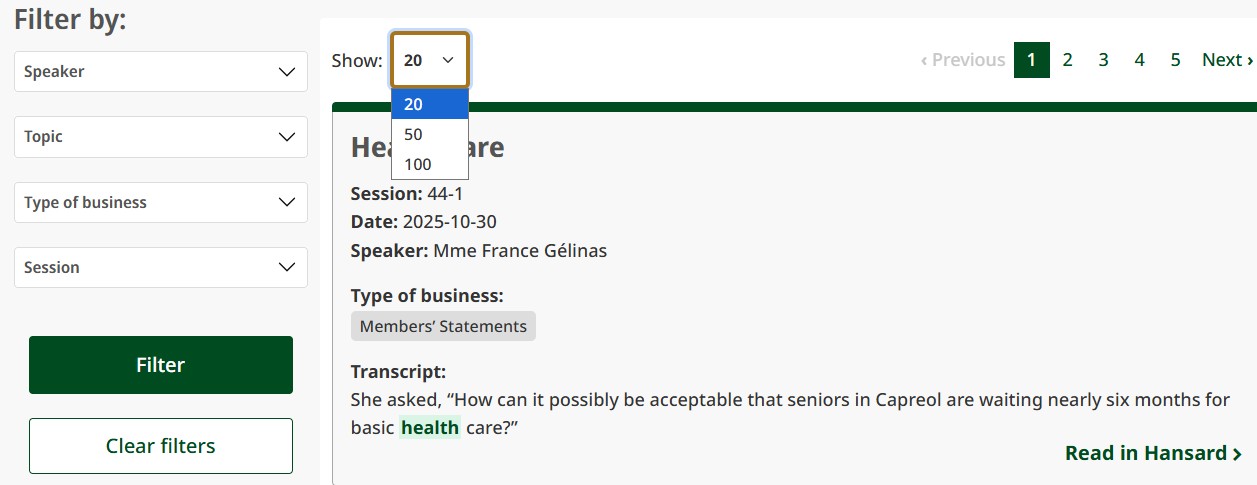
Change the number of results shown per page to 20, 50, or 100. To change the number per page, select the drop-down menu beside "Show” at the top of the results.
Refine search results using the filters on the left-hand side.
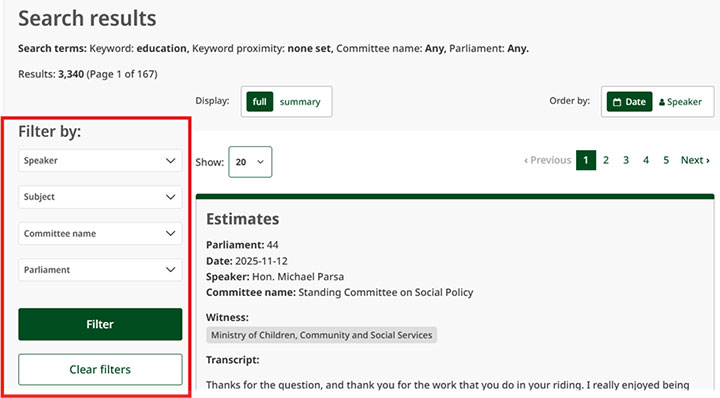
Filters available for House are Speaker, Topic, Type of business, and Session. You can select multiple options from the Speaker, Type of Business, and Session filters.
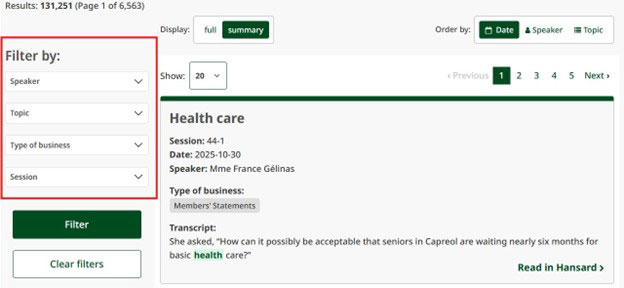
You can select multiple options from the Speaker, Type of Business, and Session filters.
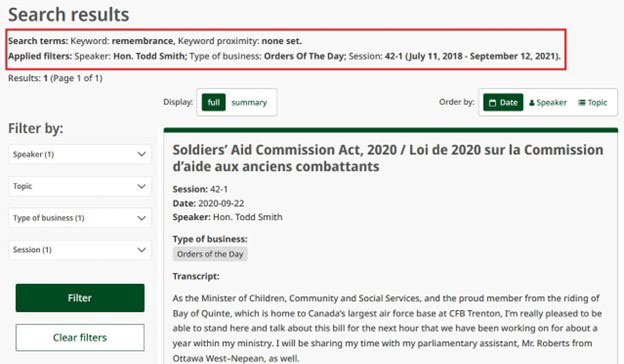
You can also select options from different filters to refine your results. Applied filters are shown above the search results.
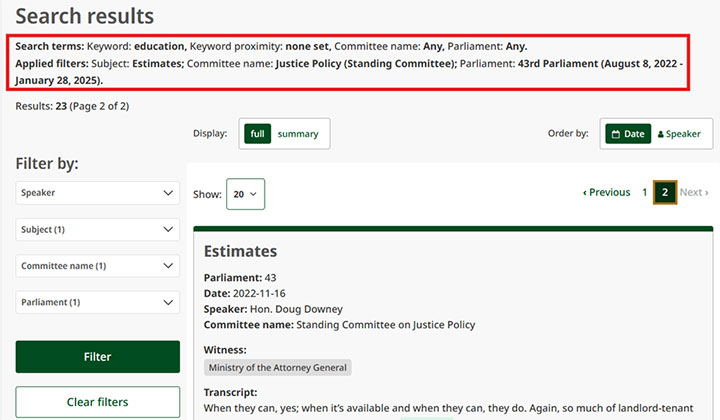
If you select a field in your initial search (e.g., Parliament or Session), you will not be able to use the facet for that field as a filter to refine the results.
Once you have selected the facets you would like to use, select Filter to filter the search results.
To clear the facets you have chosen, you can either unclick them one by one, or you can select Clear filters to clear all facets.
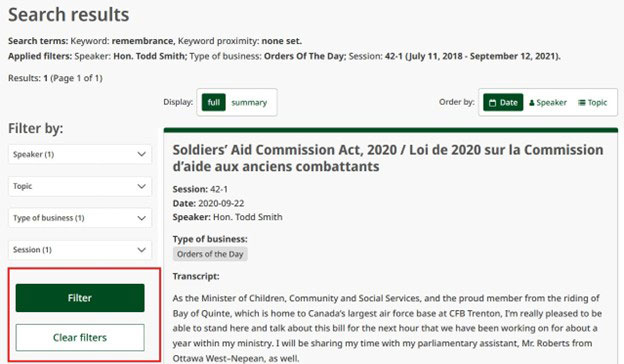
Additionally, due to variations in a member’s name used in Hansard transcripts, you may have to select more than one option for the same member (e.g., Hon. Michael A. Tibollo, Hon. Michael Tibollo, L’hon. Michael A. Tibollo).
Keyword
Highlighted terms in the search results are based on the terms that you input into the Keyword search field.
Ask a question
Highlighted terms in the search results are based on the system’s understanding of the term’s semantic relevance to your question and not exact word matching. Synonyms, related concepts, and contextually relevant terms may be highlighted.